Activity log vs audit log: what an AI agent should record for a small team

Nischal · Author
Writes about Construct, AI agents, and building useful software.
Published · @naik_nischal
On this page11 sections · 10 min read
- Why do this in Construct?
- What is the difference between an activity log and an audit log?
- What does Construct's AI agent activity log record?
- Where does the rest of the evidence live?
- Before you start: Activity is an operating record
- How do you trace an AI agent's action back to its cause?
- What should an AI agent audit trail record for a small team?
- How do you audit an AI agent product's records before you buy?
- Give Construct its first recorded job
- Sources
- Related resources
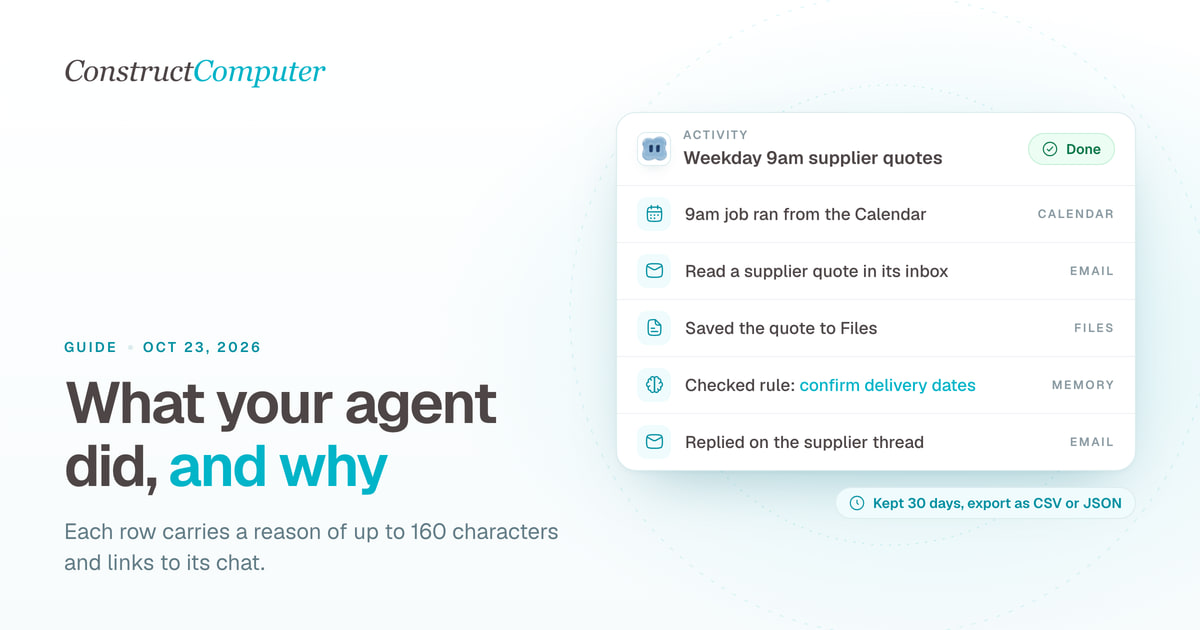
Construct's Activity is an AI agent activity log on every plan from $9 a month: one searchable row for every action your agent takes, each with a short reason of up to 160 characters and a link back to the chat it came from, kept for 30 days and exportable as CSV or JSON. It is not a forensic audit log, which must let a reviewer reconstruct every step from start to finish; Activity is the readable daily record a small team actually uses, and the detail behind each row lives in the chats, files, and run history Construct keeps next to it.
For founders and small teams, that is the record you need every day: you can scan a week of agent work in a minute, jump from any action to the conversation behind it, and fix a wrong rule at its source. This guide shows what Activity records, where the rest of the evidence lives, and how to trace a surprising action from one row to the fix.
Why do this in Construct?
- One readable row per action, with a reason. Before it calls a tool, the agent is asked to write one short sentence about why, so the feed explains itself.
- Every row links to its chat. One click takes you from "it replied to a supplier" to the instruction, the memory it checked, and the answers it got.
- Search, filter, and export. Filter by kind, status, and date, then export the view as CSV or JSON, up to 50,000 rows.
- The evidence sits next to the work. Terminal output, browser steps, workflow run history, Calendar history, sent email, and the files themselves are all kept in the same workspace.
- Finished work is saved as it happens. A run that stops at step 30 keeps steps 1 to 29 in Files, so the record and the result survive a failure.
- Wrong beliefs get fixed at the source. Memory is something you can open, correct, or forget, so one fix changes every later run.

What is the difference between an activity log and an audit log?
An activity log is a short, readable record for the person who delegated the work; an audit log is a complete record that lets someone else reconstruct exactly what happened. The first is built for speed, the second for proof.
An activity log answers practical questions quickly: what ran, what it touched, whether it worked, and roughly why it happened. It is short on purpose, because nobody reads a feed of raw tool payloads.
An audit log is written for someone who has to reconstruct events later, often someone who does not trust the system that wrote it. NIST's glossary defines an audit trail as "a chronological record that reconstructs and examines the sequence of activities surrounding or leading to a specific operation, procedure, or event in a security-relevant transaction from inception to result" (NIST CSRC glossary, citing SP 800-53 Rev. 5). The words that matter are "reconstructs" and "from inception to result."
| Property | Activity log | Audit log |
|---|---|---|
| Main reader | The person who delegated the work | A reviewer, auditor, or investigator |
| Question it answers | What did the agent do, and roughly why? | Can we reconstruct exactly what happened? |
| Detail | One readable line per action | Inputs, outputs, identities, timestamps |
| Completeness | Best effort is acceptable | Gaps are a defect |
| Retention | Weeks is usually enough | Set by policy or regulation, often years |
| Tamper resistance | Not required | Usually required (append-only, signed, or exported) |
A small team needs the first column every day. Construct's Activity is built for exactly that, and the rest of the workspace holds the detail behind each row.
What does Construct's AI agent activity log record?
Activity writes one row every time an agent calls a tool, with what happened, why, whether it worked, and a link to the chat. It is a desktop app in your Construct workspace, and each row carries:
- Kind: filterable as Actions, Files, Calendar, Workflows, Delegation, or Errors.
- What happened: a headline built from the agent's name, a verb, and the target, such as the search query, the URL it fetched, or the goal it gave the browser.
- Why: a reason of up to 160 characters. When the agent skips that sentence, the row stores only the what.
- Status: OK, Failed, or Skipped.
- Where: which agent, and a link back to the chat the action came from.
You can search the feed, filter it by kind, status, and date range (today, the last 7 days, the last 30 days, or everything still kept), and export the filtered view as a CSV for a spreadsheet or as JSON. Each export holds up to 50,000 rows.
Where does the rest of the evidence live?
Activity is the index; the details sit next to the work itself, and most of them last longer than Activity's 30 days.
| Question | Where to look | What you find there |
|---|---|---|
| What exactly did the agent say and do? | The chat the row links to | The conversation, tool cards with bounded inputs and results, and any questions it asked you |
| What did a command print? | Terminal | The saved output of each command the agent ran, which you can open or clear |
| What did it see in the browser? | Browser | The live view while it runs, then a step list with notes, URLs, and screenshots |
| Which version of a procedure ran? | Workflows run history | The published version, each step's result, and retries |
| Did Monday's scheduled job fire? | Calendar, Recent fires | Each occurrence, its outcome, and a link to the chat the run used |
| What did it send by email? | Email, Sent | The message, recipients, and thread |
| What did it produce? | Files | The reports, spreadsheets, and apps themselves |
| Why does it believe something? | Memories | The stored fact, the evidence behind it, and its history |
Chats stay until you delete them. Workflow and calendar history stay with the workflow or calendar item. Files stay until you delete them or close your account. So a row that has aged out of Activity often still has its evidence in one of these places.
Before you start: Activity is an operating record
Activity is built to be read, not to satisfy an auditor, so set it up with that in mind:
- It keeps a rolling window. Rows older than 30 days are deleted, and the oldest go first once a person's feed passes about 10 MB. Export the CSV each week if you want a longer history.
- It summarizes rather than copies. Rows do not store tool inputs or outputs, and writing a row never fails the job it describes, so a row can occasionally be missing. For the full detail, open the linked chat, Terminal, or Files.
- Each person sees their own feed. Activity rows belong to the person whose agent acted, so a team workspace has no single feed of every member's agent actions. For jobs that matter to the team, add a final step: "Append one line to
Files/logs/agent-runs.csvwith the date, what you did, and links to what you produced." That file lives in the workspace as long as you keep it. - Workflows do not pause for approval yet. For payments or customer email, ask for drafts and send them yourself; the verification gap post explains why that review is where the real time goes.
If your compliance team needs a tamper-evident, complete record of every agent operation, Activity is not that record. Keep those actions in a system of record that is, such as your CRM's record history or your accounting tool's change log, and use Construct's exports and run-log files alongside it.
How do you trace an AI agent's action back to its cause?
Start from the Activity row, open the chat it links to, then check the memory, the schedule, and what went out. This example is illustrative, not a customer case, and every step uses records Construct already keeps.
A four-person design studio runs a scheduled Construct job each weekday at 9am that checks the agent's inbox for supplier quotes, saves them to Files, and sends the owner a summary. On Thursday, a supplier replies to an email the owner does not remember approving.
- Start in Activity. Filter to the last 7 days and search the supplier's name. One row says the agent replied to the supplier's thread, with the reason "Supplier asked for delivery date; standing rule says confirm dates."
- Open the chat. The row links to the run. The transcript shows the agent read the quote, checked a memory, and used it to decide that a delivery-date question was safe to answer.
- Check the memory. In Memories, the rule "confirm delivery dates with suppliers" exists, with the conversation it was learned from. It was meant for one supplier, not all of them. Correct it, or forget it.
- Check the schedule. The Calendar event's Recent fires shows the 9am occurrence ran and succeeded, so this was the scheduled job, not someone's ad hoc request.
- Read what went out. The Sent folder has the reply. It was harmless this time.
- Fix the job, not just the record. Change the scheduled prompt so supplier replies are drafted, not sent, and export that week's Activity as a CSV if you want a copy in your own records.
The fix in step 3 changes every later run, not just this one. Our guide to letting an agent use Gmail safely covers the drafting rule in more detail, and inbox triage with drafts, not sends applies the same pattern to a busier mailbox.
Silent product demo: Construct's Memories app showing the preferences and procedures the agent has learned, with the evidence behind each one, so you can review, correct, or forget them.
What should an AI agent audit trail record for a small team?
Five records cover almost every question a small team asks after the fact: the action, the conversation behind it, the artifact, the schedule history, and the belief the agent acted on. Construct keeps all five:
- One line per action, with a reason. Enough to scan a week in a minute. That is Activity.
- The conversation behind it. The instruction the agent was following and the answers it got. Every Activity row links to its chat.
- The artifacts. The file, the sent message, the updated record. Construct saves them to Files as they are produced; see how a persistent workspace keeps finished work.
- The schedule history. Whether a recurring job ran, skipped, or failed. Construct keeps this per calendar item and per workflow run, as our guide to running an agent on a schedule shows.
- The beliefs. What the agent remembered and from where, so a wrong rule can be fixed at the source. That is what inspectable memory is for.
Self-hosting does not hand you these for free. OpenClaw's recommended hardened setup tells you to "enable message auditing" and export telemetry to your own monitoring system "with operator-owned retention" (Why OpenClaw), so the logging pipeline is yours to build and keep; our Construct vs OpenClaw comparison covers the rest of that trade.
Read next
Nobody merges an emailHow do you audit an AI agent product's records before you buy?
Run each of these as a test on a trial account, not as a question on a sales call.
- Can you find yesterday's actions in under a minute? Search and filters beat a long scroll.
- Does each action say why, not just what? A reason is what turns a log into an explanation.
- Can you jump from an action to the conversation behind it? Without that link, you are reconstructing context by hand.
- Are inputs and outputs kept, and for how long? Ask for the number of days, not "we keep logs."
- Can you export it? CSV or JSON you can store yourself is the minimum for anything you might need later.
- Who can see it? Per person, per workspace, or an admin-wide view.
- Is it ever pruned or rewritten? Rolling retention is fine for operations and wrong for audits.
- Does the record survive a failed run? A job that dies halfway should still show what it did before it stopped.
Construct answers yes to 1, 2, 3, 5, and 8. It keeps Activity rows for 30 days with the detail in the linked chat, Terminal, and Files, and shows each person their own feed.
Give Construct its first recorded job
Choose Construct if you want an agent whose work you can explain: every action in Activity with a reason, a link from each row to the chat behind it, and the files, run history, and memory to back it up, on every plan.
Pick one recurring job you currently check by hand, such as a morning inbox summary or a weekly supplier quote roundup. Give it to Construct, put it on the Calendar, and let it run for a week. On Friday, open Activity and explain every row to a teammate, following each link to the chat and the files it produced. Start on Lite for $9, or try Pro free for seven days.
Sources
- NIST CSRC glossary: audit trail, checked October 11, 2026
- OpenClaw docs: Why OpenClaw, the hardened setup, checked October 11, 2026
- Construct pricing
- Construct memory
Related resources
- AI employee for real business work
- AI agent memory you can control
- How to run an AI agent on a schedule with your laptop closed
- How to let an AI agent use your Gmail safely
- Nobody merges an email
- Workflows in Construct
Frequently asked questions
- What is the difference between an activity log and an audit log?
- An activity log is a short, readable record for the person who delegated the work: what the agent did, whether it worked, and roughly why. An audit log is a complete chronological record that lets a reviewer reconstruct events from start to finish, usually kept for years and protected against changes. A small team needs the first every day and the second only where policy demands it.
- How do I see what my AI agent did in Construct?
- Open the Activity app. It shows one row for each action an agent takes, with its kind, a headline naming the target, a reason of up to 160 characters when the agent gives one, a status, the agent, and a link back to the chat it came from. You can search it, filter it by kind, status, and date, and export it as CSV or JSON on every plan.
- Is Construct's Activity a complete audit log?
- No. Activity is an operating record: it does not store tool inputs or outputs, rows are written on a best-effort basis, and it keeps the last 30 days or about 10 MB of rows per person. The detail behind each row lives in the linked chat, Terminal, Browser steps, workflow and Calendar history, sent email, and Files.
- How long does Construct keep Activity history?
- Activity keeps a rolling 30 days per person and deletes the oldest rows first once a feed passes about 10 MB. Chats stay until you delete them, workflow and calendar history stay with their item, and files stay until you delete them or close your account, so the evidence behind an old row often outlasts the row itself.
- What should an AI agent audit trail record?
- For a small team, five records answer almost every question after the fact: one line per action with a reason, the conversation the agent was following, the artifacts it produced or sent, the history of each scheduled job, and the beliefs it acted on with where they came from. Construct keeps all five across Activity, chats, Files, Calendar, and Memories.
- How do I audit an AI agent product before buying it?
- Test it on a trial account. Check that you can find yesterday's actions in under a minute, that each action says why, that you can jump from an action to its conversation, how many days inputs and outputs are kept, whether you can export the record, who can see it, whether it is pruned, and whether it survives a failed run.
- How can a small team keep longer records of agent work in Construct?
- Export the Activity CSV each week and store it yourself, have the agent append a line to a run log file in Files at the end of important jobs, and rely on the change history in connected systems such as your CRM or sent mail for actions that matter. For a tamper-evident record, keep those actions in a system of record that provides one.
Keep reading
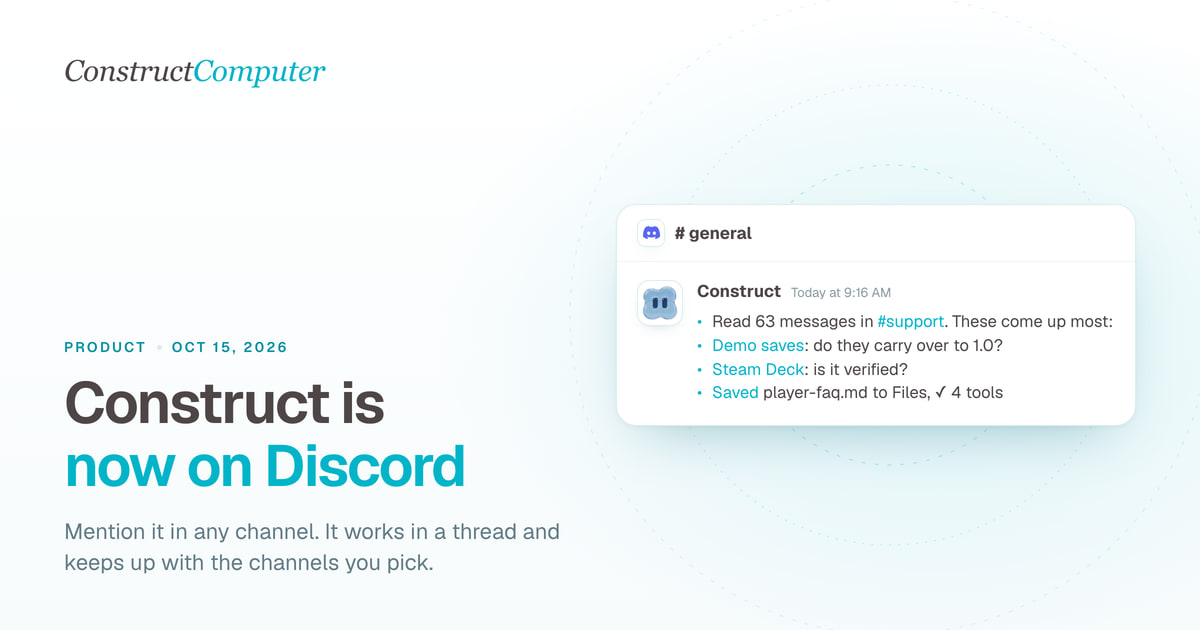
Construct is now on Discord: an AI agent that works inside your server
Add Construct's AI agent to Discord. Mention it in any channel, it works in a thread, follows channels you pick and keeps your server's context. From $9.
How to Choose an AI Agent Platform for Your Team
A vendor-agnostic evaluation checklist for AI agent platforms: pilot-failure data, six evaluation criteria, governance pressure, and a scorecard you can reuse.
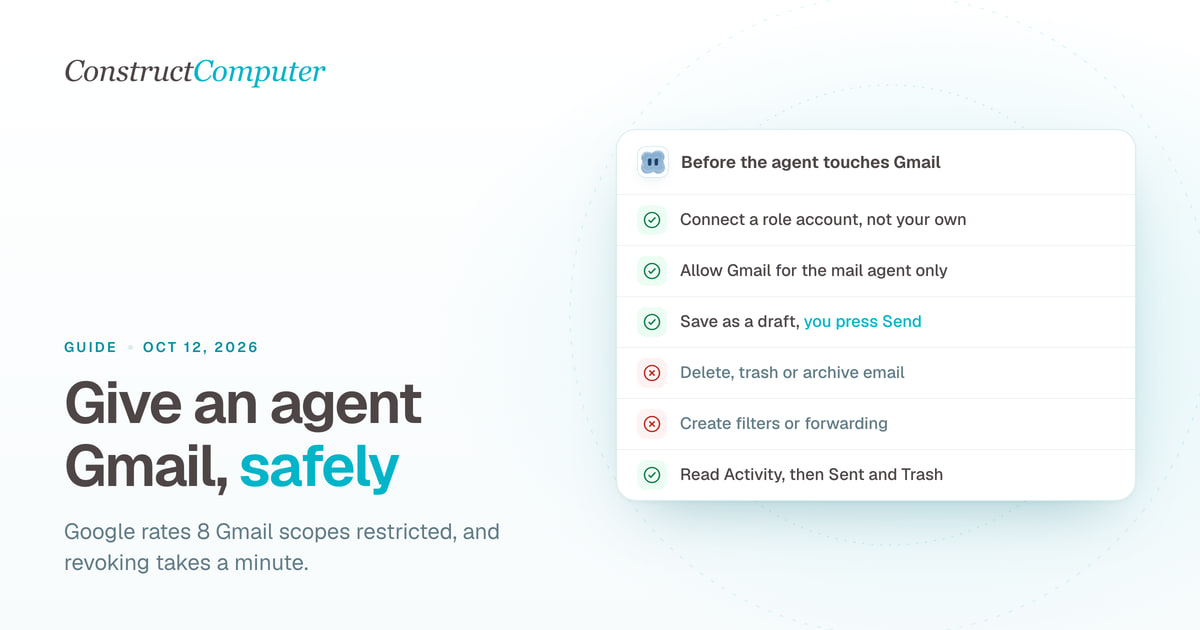
How to Let an AI Agent Use Your Gmail Safely
AI agent Gmail access without the risk: 8 restricted Gmail scopes explained, a separate agent inbox, drafts instead of sends, and a 1-minute revoke.
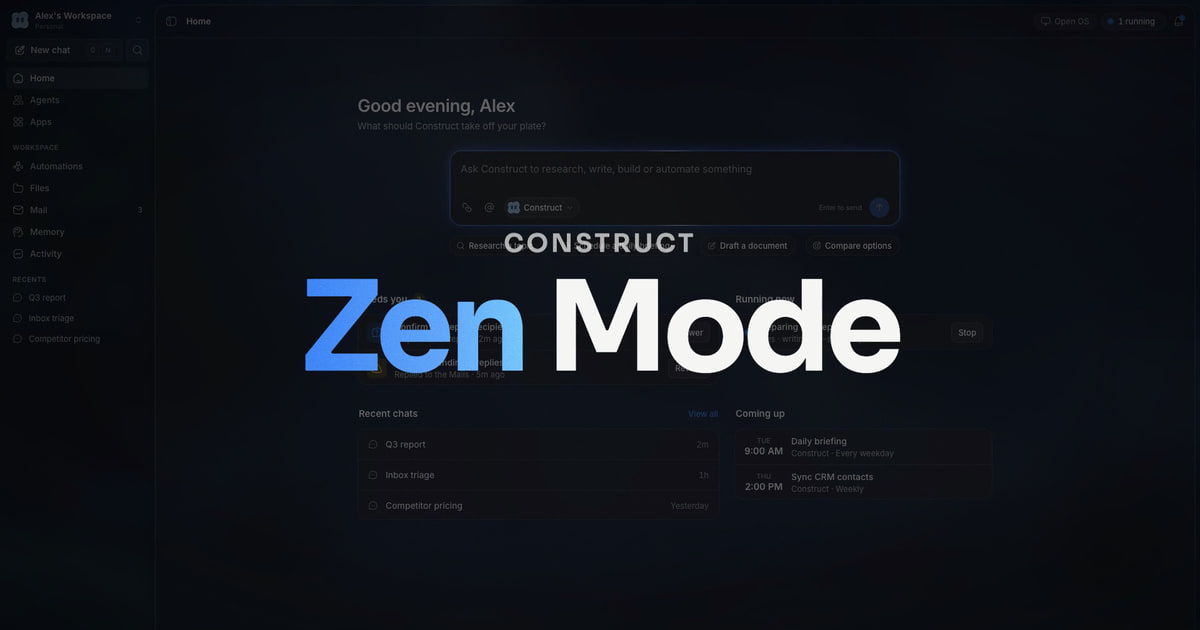
Zen Mode: some days you just want it done
Zen Mode is a chat-first way into Construct's AI computer. Ask once, it works in the background, asks when it needs you, and runs on your phone.
- product
- ai-agent
- ai-employee
- zen-mode

