Zen Mode: some days you just want it done

Nischal · Author
Writes about Construct, AI agents, and building useful software.
Published · @naik_nischal
- product
- ai-agent
- ai-employee
- zen-mode
Zen Mode is a calmer, chat-first way into Construct Computer, the AI agent with its own cloud computer. You ask in one box. Your agents do the work on their computer in the background, and a single Home screen shows only what needs you, what is running, and what is coming up. The computer itself does not change: the same browser, files, inbox, schedules, and memory are all still there, and Open OS brings back the full desktop, mid-task, whenever you want to watch. Zen Mode also works on your phone, which the desktop never did.
- What it is: a second way into the same Construct workspace. Not a new version, not a separate plan, not a lite edition.
- Where it lives: app.construct.computer. From the desktop, click Zen Mode in the menu bar. From Zen Mode, click Open OS to go back. Same account, nothing to migrate.
- What stays the same: your agents, files, mail, memory, automations, and Activity history.
- What is new: a Home screen built around what needs you, a layout that fits a phone, and keyboard-first navigation.
- Watching is on demand: every chat has a computer panel with the live browser, terminal, and files, and you can take control of the browser at any point.
- Price: included in every Construct plan, from $9/month.
If you saw a "Try V2" button in the Construct menu bar over the last few weeks, this is it, with its real name.

The 40-second Zen Mode film. A cursor labelled Construct works a live desktop on its own, then a click on Zen Mode folds the desktop back, still running, and a calm Home screen takes its place. A weekly competitor brief is requested, scheduled, and approved, and Open OS shows the same computer still working on it.
Why build a calmer way into the same computer?
When we launched Construct, the pitch was a computer you could watch. Your AI got a desktop of its own, with windows, a dock, and a cursor that belonged to it, and you could see every click. People liked that enough to make Construct #1 Product of the Day on Product Hunt. Watching is still the fastest way to trust an agent you have never used before, because nothing is hidden.
Then something predictable happened. Once people trusted it, watching turned into a chore.
Automation researchers saw this coming a long time ago. In Ironies of Automation (1983), Lisanne Bainbridge pointed out that vigilance studies show it is "impossible for even a highly motivated human being to maintain effective visual attention towards a source of information on which very little happens, for more than about half an hour." An agent's desktop is exactly that kind of source. Long stretches of pages loading and text appearing, then one moment that actually needs a person.
If the only way to catch that moment is to watch the whole run, the agent has not taken work off your plate. It has swapped your job for a worse one: monitoring. We wrote about the same trap from the reviewing side in Nobody merges an email.
So we kept the computer and changed what you look at.
Some days you want to watch it work. Some days you just want it done. Zen Mode is for the second kind of day. The desktop is one click away for the first.
What is Zen Mode?
Zen Mode is the task-first shell of Construct Computer. Instead of a desktop full of windows, you get one place to ask and one place to check in, and the agents keep working on their own computer whether you are looking or not.
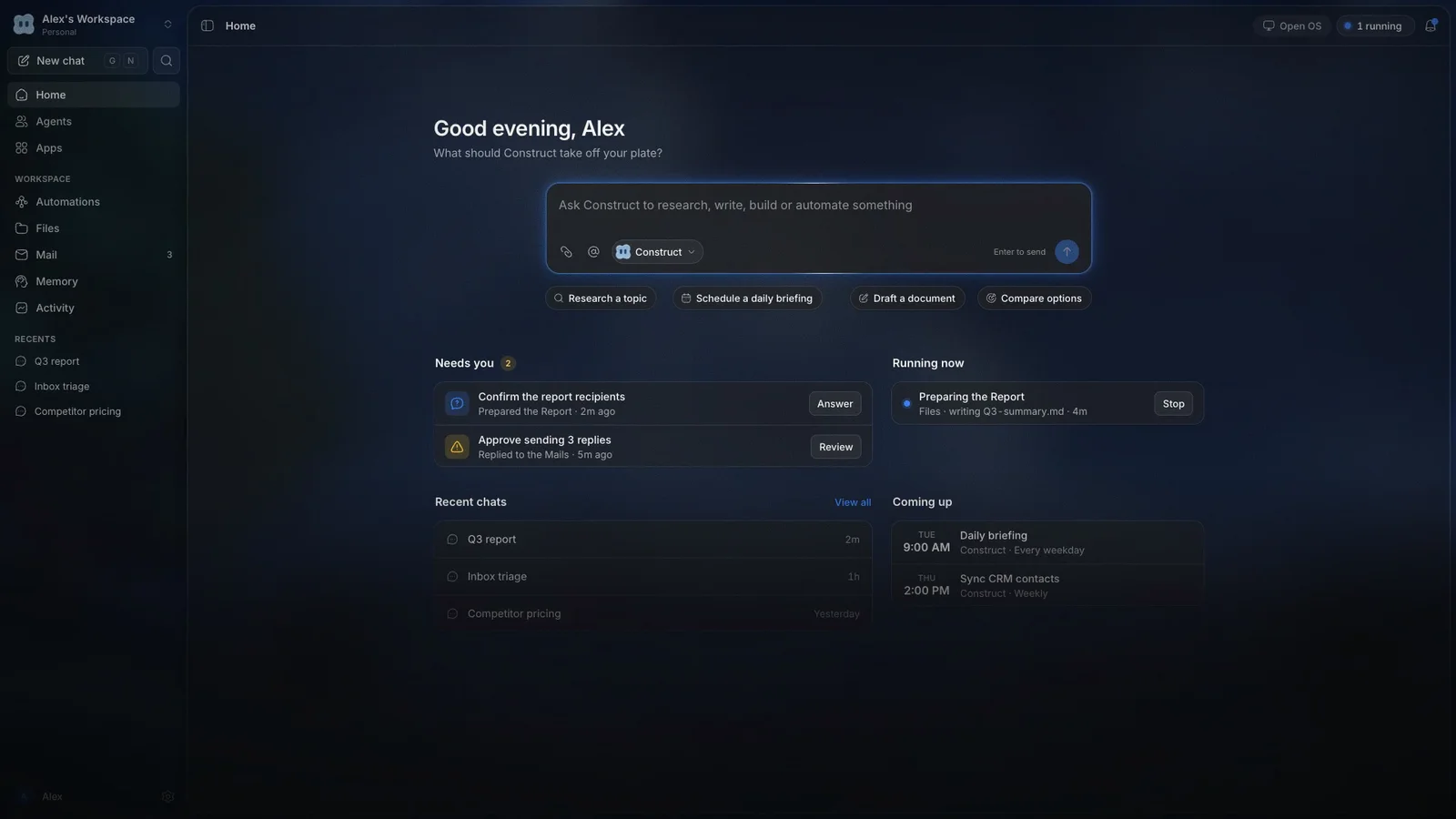
Zen Mode Home, from the launch film. Everything waiting on you is on the left, everything running is on the right, and Open OS is always in the corner.
Here is what Home shows:
- The ask box. "What should Construct take off your plate?" Type a request, attach up to 8 files, @-mention files, folders, apps, agents, or teammates, and pick which agent takes it. Starter prompts such as "Research a topic" and "Schedule a daily briefing" are there the first time you open it.
- Needs you. Everything waiting on a human, in one list: a question an agent asked, an app it needs you to connect, a workflow run that failed, or a billing or usage limit. Each item has one button, such as Answer or View run.
- Running now. Every live task with an elapsed timer and a Stop button, plus Stop all when several are running.
- Recent chats and Coming up. Where you left off, and what your schedules will run next.
The sidebar holds the rest of the computer: Agents, Apps, Automations, Files, Mail, Memory, and Activity. Press ⌘K (Ctrl+K on Windows) to search chats, pages, apps, and files, or to hand the query straight to Construct as a new task.
Zen Mode vs the desktop: what changes and what doesn't
| Feature | Zen Mode | Desktop (OS) |
|---|---|---|
| Built around | Tasks and outcomes | Windows and apps |
| First thing you see | An ask box and a Home screen of what needs you | A menu bar, a dock, and the agent's windows |
| Watching the agent | On demand, in each chat's computer panel | Always, the work happens in front of you |
| Works on a phone | Yes | No, phones are handed off to Zen Mode |
| Agents, files, mail, memory, schedules | The same ones | The same ones |
| Best for | Delegating, then checking in | Watching, hands-on work, apps side by side |
It is a view, not a version. Both shells use the same account and the same session, so there is nothing to migrate and no setting to flip. That is also why we retired the working name "V2": a new version implies the old one is going away, and the desktop is not going anywhere.
One request, start to finish
Here is the job from the film, step by step: "Research our top 5 competitors and brief me every Monday."
- Ask. Type it on Home and send. The task appears in Running now with a timer, and you can close the tab. The work runs on Construct's cloud computer, not in your browser.
- It works on its own computer. Construct searches the web, reads pricing pages in its browser, and writes the brief to Files. If you want to look, open the chat's computer panel with
⌘\. Its Progress, Browser, Terminal, and Files tabs follow whatever the agent is using. If a site needs a human, click Take control on the live browser, finish that step, and give control back. - Steer without restarting. While it runs, the ask box reads "Add to the task, Construct will fold it in." Type "include each company's annual discount" and the running task picks it up.
- It asks when it needs you. A question arrives as a card with options, and it lands in Needs you with an Answer button. Nothing else interrupts you.
- Make it recurring. Put it on a schedule, such as "Weekly on…" Monday at 8:00 in your time zone. You get a preview of the next runs and a rule for when a run is still going ("Skip this run" or "Queue it"). The schedule then appears in Coming up.
- Check what it left behind. A brief in Files, a chat you can reopen to see where each line came from, an entry in Activity describing what the agent did and why, and possibly a memory such as "Prefers briefs on Mondays" that you can correct or forget.
Curious what it is doing right now? Click Open OS. The same task is on the full desktop, mid-run.
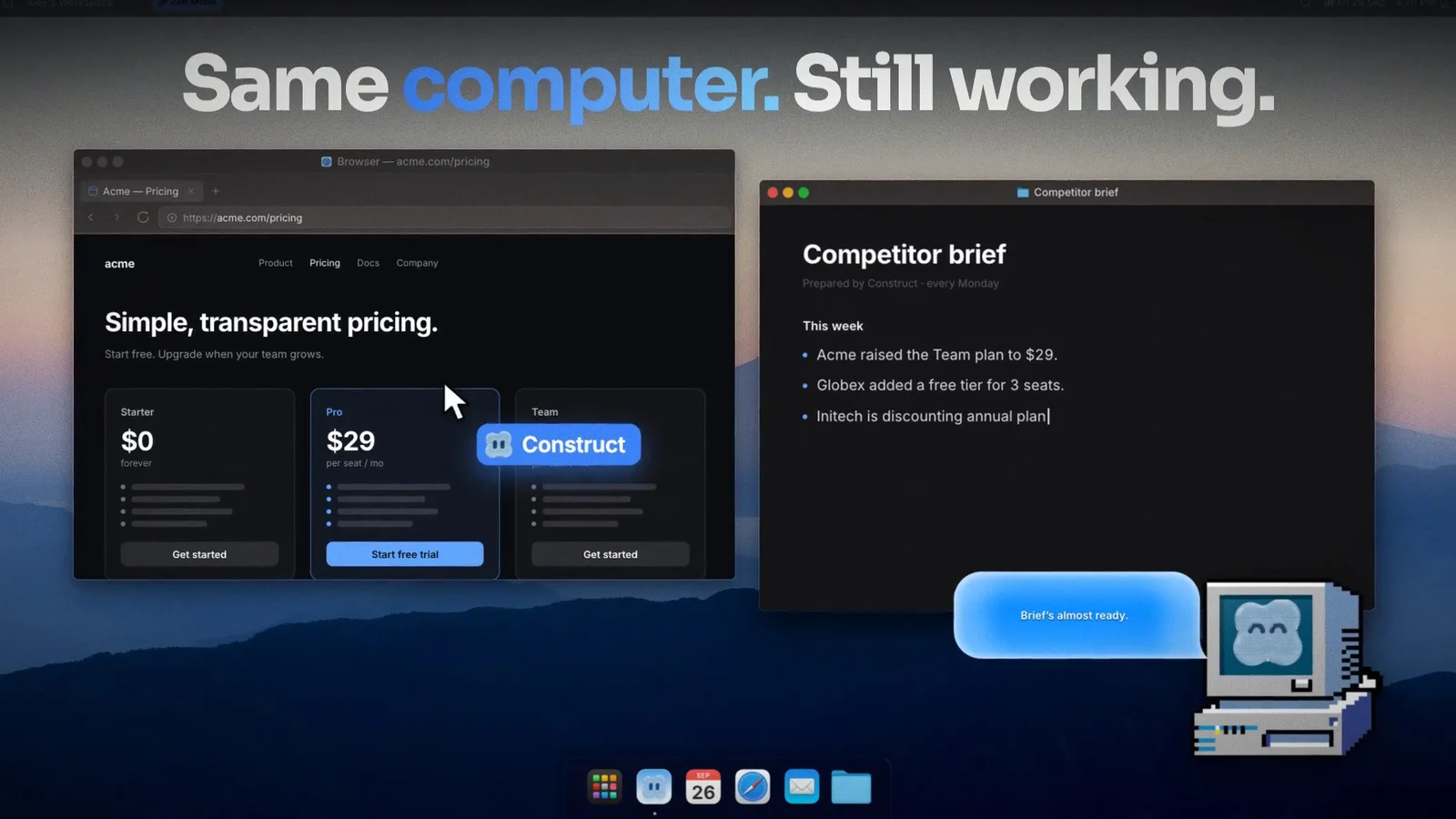
Open OS, from the launch film: the brief requested in Zen Mode is still being written on the desktop, with the agent's cursor on a pricing page.
Read next
AI Workflow AutomationCalm is not the same as blind
The risk with any "just get it done" interface is that you stop knowing what your agent did. Zen Mode keeps every record the desktop keeps and puts each one a click away.
- Activity answers "what did my agents do, and why?" Filter by agent, status, and date, and export to CSV or JSON. Activity is kept for 30 days.
- Memory shows who learned each fact, where it came from, and which agents it applies to. Correct a fact, or forget it; forgotten memories stay in Forgotten so you can restore them. The memory guide covers this in depth.
- Mail gives the agent an address of its own. When it drafts a reply, you can Send it, Ask for changes, or Discard it.
- Stop is always close: press
Escor the Stop button in a chat, type/stop, or use Stop all on Home.
One limit to be clear about: Zen Mode does not add an approval step before every action. An agent with access to a tool can use that tool. For anything you cannot take back, such as a payment or a message to a customer, keep review in the instructions and run the job on demand a few times before you schedule it. The interface got calmer. Deciding what to automate is still your call.
Does Zen Mode work on a phone?
Yes. The desktop was built for a large screen, and on a phone it hands you off with a note: "Zen Mode works on this phone. Same computer, same agents." Zen Mode is built to fit. On narrow screens the sidebar becomes a drawer and the ask box docks to the bottom of Home. Open app.construct.computer in your phone's browser and sign in with the same account.
It is the mobile web app, not an App Store app, so there is nothing to install. It is best for the small moments that used to wait until you were back at a desk: answering a question an agent asked while you were out, checking Running now, reviewing a drafted reply, or starting a task from the train and letting the cloud computer do the rest.
For people who live on the keyboard
⌘Ksearches everything, or asks Construct.Gthen a letter jumps anywhere:G Nnew chat,G HHome,G AAgents,G UAutomations,G FFiles,G MMail,G RMemory,G VActivity.⌘\shows or hides the computer panel in a chat.Escstops the current run.?lists every shortcut.- In the ask box,
/new,/stop,/agents, and/cleardo what they say.
Zen Mode also has Groups: one shared conversation with your team and your agents. A lead agent replies by default, and specialist agents answer when you @mention them.
How other AI agents handle "watch it or leave it"
We build Construct. The table below is our editorial comparison of what each product documents about where its agent works and how you check in, as of September 29, 2026. It is not a hands-on benchmark, and prices are the lowest monthly subscription we found that includes each agent.
| Product | Where the agent works | How you check in | Watching and taking over | Entry price |
|---|---|---|---|---|
| Construct Zen Mode | Its own persistent cloud computer, with browser, terminal, files, and an inbox | Chat, plus Home: Needs you, Running now, Coming up | Computer panel in each chat, Take control of the browser, full desktop via Open OS | $9/mo (Lite) |
| Grok Bot | A cloud computer per Bot that keeps working 24/7 | Conversation; Bots "only come back when something needs your approval" | Open Agent Computer shows clicks, typing, and navigation; take control for passwords, 2FA, and payments | $20/mo (Cursor Pro) |
| Claude, with Cowork in the main chat | Anthropic's servers, in an isolated environment | One chat window that routes each request, since September 16, 2026 | Shows what Claude is planning and doing so you can steer | $20/mo (Pro) |
| ChatGPT Work | OpenAI's cloud, with a separate cloud browser | The conversation; you approve consequential actions | Follow progress in the chat; take over its computer on mobile and desktop | $20/mo (Plus) |
| Manus 2.0 | A Cloud Computer, or your own computer in an authorized session | Chat, plus event-triggered Automations | A visible workspace, which you can watch live from your phone | $20/mo (Pro) |
The pattern is hard to miss: everyone has converged on calm by default, with the computer on demand. When Anthropic merged Cowork into the main Claude chat, TechCrunch reported the reason plainly: "customers often struggled to choose the right tab for the right task." OpenAI removed ChatGPT's standalone agent mode in August 2026 and moved browsing into Work's cloud browser, and a community thread titled "Agent mode was removed with no real replacement" shows how much some people valued seeing the browser.
Where Construct is different:
- Two full views of one computer. Zen Mode is not a chat with a preview window attached. The complete desktop, with its windowed browser, terminal, editor, and calendar, is one click away and shows the same work.
- A workspace that outlives the chat. Files, a native agent inbox, memory you can correct, schedules, workflows, and internal apps your agents build all stay in one place for the next job.
- The lowest entry price here. Construct Lite is $9/month, $11 below the next cheapest option in the table. That compares starting prices, not equal usage, as our Grok Bot comparison explains.
Where another product may fit better: if you already pay for Cursor, SuperGrok, ChatGPT Plus, or Claude Pro, try the agent you already have first. And Construct works on its own cloud computer, not yours. If the job depends on files or apps that only exist on your own machine, a product that can operate your computer, such as Manus in an authorized session, is the more direct fit.
When should you open the desktop instead?
- You want to watch a long browser job from start to finish, or keep several apps side by side.
- You want the windowed apps. The standalone browser, terminal, editor, and calendar live on the desktop.
- You are showing Construct to someone new. Watching an agent use a computer is still the quickest way to understand what it can do.
Switching is one click each way, and nothing you do in one view is lost in the other.
What does Zen Mode cost?
Nothing extra. Zen Mode is part of Construct, and plan limits are the same whichever view you use.
| Plan | Monthly price | Agents | Scheduled tasks | Steps per task | Parallel background jobs |
|---|---|---|---|---|---|
| Lite | $9 | Up to 2 | 3 | Up to 50 | 2 |
| Starter | $59 | Up to 5 | 10 | Up to 150 | 4 |
| Pro | $299 | Up to 15 | 50 | Up to 1,000 | 8 |
Every plan includes an agent email address. Pro adds bring-your-own-key support for supported model providers and has a 7-day trial. Check the current plans before you buy, because prices and limits can change.
Try Zen Mode
If you are new to Construct, sign up and you start in Zen Mode. If you already use the desktop, click Zen Mode in the menu bar, or open app.construct.computer directly.
Then give it the job you usually babysit: the weekly report, the inbox sweep, the research you keep meaning to do. Ask once, close the tab, and come back when it needs you. Your AI keeps its computer. You get your day back.
Sources
- Lisanne Bainbridge, "Ironies of Automation", Automatica, 1983
- Construct Computer on Product Hunt
- Introducing Grok Bot, August 11, 2026
- Grok Bot computer and apps documentation
- Grok Bot access expansion, August 26, 2026
- Grok Bot pricing
- TechCrunch: Anthropic merges Claude chat and Cowork, September 16, 2026
- Get started with Claude Cowork
- Claude pricing
- ChatGPT Work cloud browser documentation
- ChatGPT pricing
- OpenAI community: Agent mode was removed with no real replacement
- Introducing Manus 2.0, September 28, 2026
- Manus membership pricing
- Construct pricing
Related resources
- Nobody merges an email: why agent work is hard to check
- AI agent memory you can control
- AI workflow automation
- Grok Bot alternative: Construct vs Grok Bot
- Construct vs ChatGPT, Claude, and Gemini
Frequently asked questions
- What is Zen Mode in Construct?
- Zen Mode is a chat-first way into Construct Computer, the AI agent with its own cloud computer. You ask in one box, your agents work in the background, and a Home screen shows what needs you, what is running, and what is coming up. It uses the same agents, files, mail, memory, and schedules as the Construct desktop.
- Is Zen Mode a lite version of Construct?
- No. Zen Mode and the desktop are two views of the same computer on the same account, so there is nothing to migrate. Open OS switches to the full desktop mid-task, and the Zen Mode button in the desktop's menu bar switches back. Plan limits are the same in both.
- Can I still watch my AI agent work in Zen Mode?
- Yes. Every chat has a computer panel with Progress, Browser, Terminal, and Files tabs that follow what the agent is using, and you can take control of the live browser and hand it back. Open OS shows the same task on the full desktop.
- Does Zen Mode work on a phone?
- Yes. Open app.construct.computer in your phone's browser and sign in with the same account. The sidebar becomes a drawer and the ask box docks to the bottom of Home. It is a mobile web app rather than an App Store app, and the desktop hands phones off to Zen Mode.
- Does Zen Mode cost extra?
- No. Zen Mode is included in every Construct plan: Lite at $9/month, Starter at $59/month, and Pro at $299/month, billed monthly. Limits such as agents, scheduled tasks, and steps per task are the same whichever view you use.
- How is Zen Mode different from Claude, ChatGPT Work, Grok Bot, or Manus?
- As of September 29, 2026, all of them let an agent work in the background and check in when needed. Construct pairs a calm chat view with a full desktop of the same persistent computer, keeps files, an agent inbox, correctable memory, and schedules in one workspace, and starts at $9/month against $20/month entry plans for the others. Construct works on its own cloud computer, not yours, so jobs that need files on your own machine suit a product that can operate it.
Keep reading
How to Choose an AI Agent Platform for Your Team
A vendor-agnostic evaluation checklist for AI agent platforms: pilot-failure data, six evaluation criteria, governance pressure, and a scorecard you can reuse.
- ai-agent
- ai-employee
- governance
- product

Nobody merges an email
Agents made work cheap to produce and no cheaper to check. Why software absorbed the flood, why the rest of the business did not, and the five things that make agent work checkable.

What is an AI employee?
Learn what an AI employee is, how it differs from a chatbot, and how Construct completes work across email, Slack, browser, and connected apps.

Your agent has a half-life
Why AI agents keep failing on long multi-step jobs: a 95% reliable agent finishes 48 steps 8.5% of the time. The fix is a resumable run, not a better model.

