An AI daily summary in Slack: recaps, Today, or a briefing bot

Nischal · Author
Writes about Construct, AI agents, and building useful software.
Published · @naik_nischal
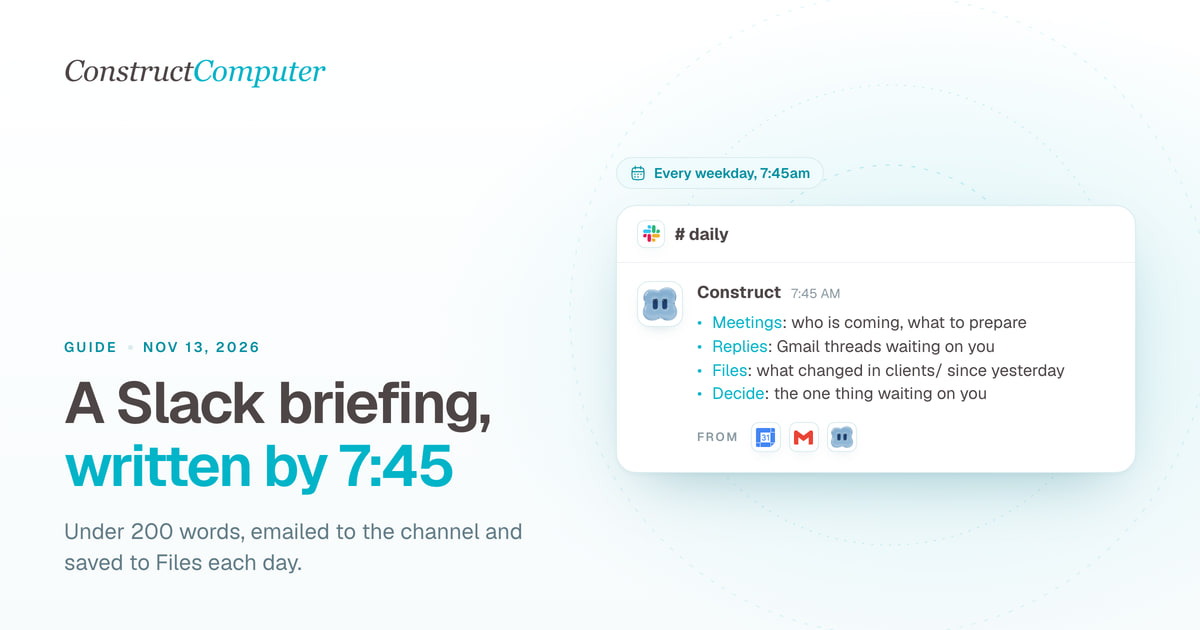
An AI daily summary in Slack comes in two kinds. Slack's own recaps summarize the channels you pick and arrive every morning, but only on Business+ and Enterprise+ plans; Pro gets on-demand conversation summaries instead (Slack Help Center, checked 2026-10-26). A briefing bot reads beyond Slack: Construct, for example, reads your Google Calendar, Gmail and workspace files at 7:45am on weekdays and posts one briefing into a channel through the channel's email address, which works on any paid Slack plan.
This guide sets up the second kind end to end and is plain about where Slack's own features are the better pick.
Which Slack summary fits your team
| Option | What it reads | How it arrives | Slack plan |
|---|---|---|---|
| Slack AI recaps | Channels you choose | A personal Recap in the sidebar, each morning | Business+, Enterprise+ |
| Slack Today | Your calendar (Google or Outlook), unreads, connected apps | A personal view in Slack | Enterprise and Business+ rollout; beta closed |
| Slackbot tagged in | The thread you tag it into | A reply when someone asks | Business+, Enterprise+; sample on Free, Pro |
| Construct briefing | Calendar, Gmail, workspace files | A post in a channel at a set time, or a thread reply | Paid Slack for channel posts; any plan on demand |
Recaps: "You'll get a new recap every morning with what you missed from the previous day," and you choose channels under Recap, Manage Recap (Slack). If your team is on Business+ and the job is catching up on channels, use recaps: they read every message in those channels, which Construct does not.
Today was announced on May 6, 2026 for Enterprise, with "Business Plus and Pro subscriptions with AI access: Coming this summer" (Slack). The May 29 feature drop listed Business+ and Enterprise plans, not Pro (Slack), and Slack's help page now says "We aren't currently accepting new participants in the Today beta" (Slack). Reading Gmail is not documented in the sources we reviewed.
Slackbot can now be tagged "into any channel to pull the full thread together," with ongoing access on Business+ and Enterprise+ and "a limited sample" on Free and Pro (Slack). It answers about a thread when asked; it does not run on a schedule.
What Construct does in Slack, and the one gap
Once added to Slack, Construct answers when someone mentions it in a channel, replying in a thread, and in direct messages. It does not read the rest of a channel unless you turn on listening, and even then only answers questions about that channel from inside it (covered below).
A scheduled run has no Slack conversation to post into. Construct's Slack tool posts only from inside a Slack conversation, and Slack is not offered through the app catalog, so a 7:45am run cannot call Slack directly. The run emails the briefing to the channel's address instead, and Slack posts it. It appears as an email post, and Slack lets you set the name and icon it shows.
You need:
- A Construct plan. Lite ($9 a month) includes 3 scheduled tasks and the agent's own email address, enough for one briefing (pricing).
- Construct added to your Slack workspace, by you or, in a team workspace, an owner or admin.
- Gmail and Google Calendar connected from Construct's app catalog.
- A paid Slack plan for channel posts. On Free, use the Slackbot forwarding address in step 2 or ask on demand in step 6.
Set up the briefing
1. Add Construct to Slack
In Construct, open Settings, Messaging, and press Add to Slack. The installer always has full access.
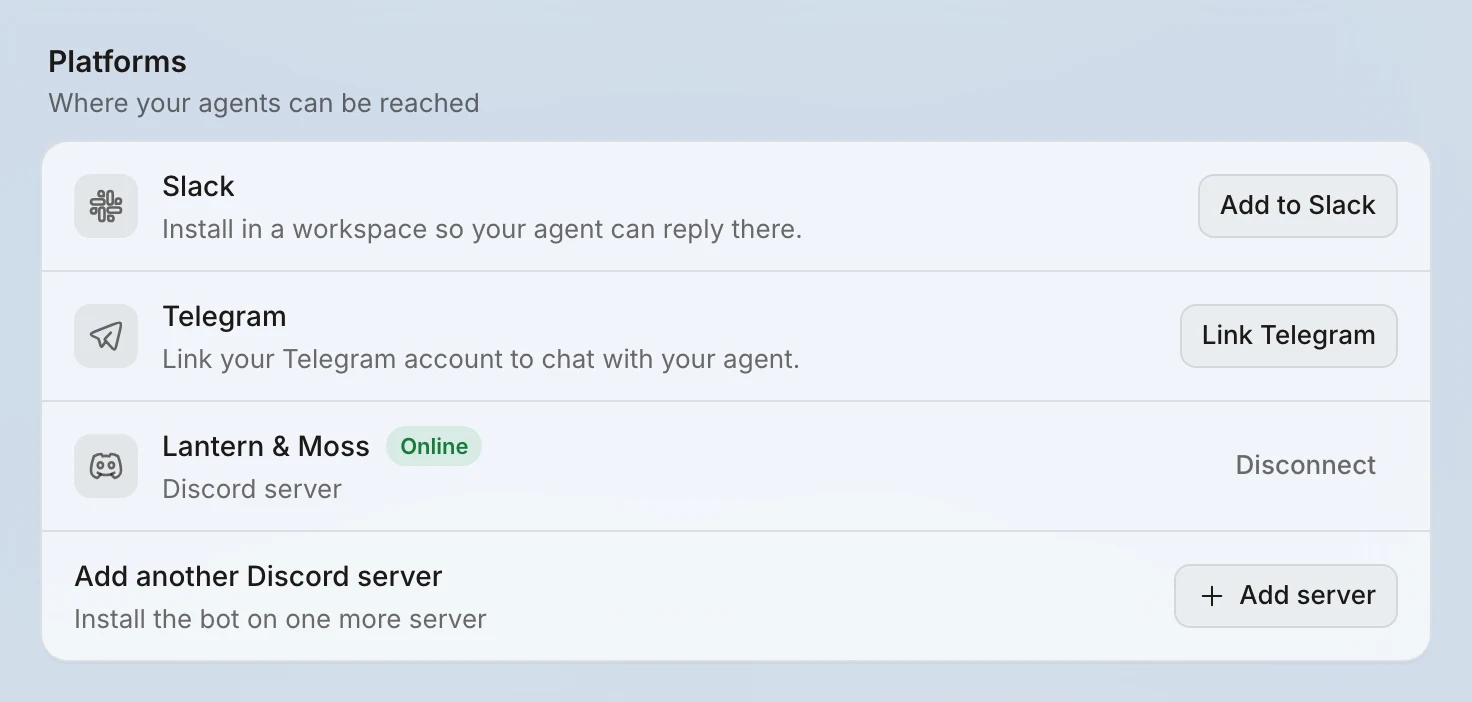
Access defaults to Only people I allow. Add each teammate's Slack member user ID with Full access. Choosing Everyone in the server instead gives unlisted people a read-only guest agent with no access to your connected apps, files or email. A mention in a channel runs on the installer's Construct account and its connected apps, so add only people you would trust with them.
2. Get the channel's email address
In Slack, click the channel name in the header, open the Automations tab, select Send emails to this channel, click Get email address, then Copy. Channel addresses are on paid plans only; "by default, any member of a channel can get an email address," and owners and admins can turn that off. HIPAA-compliant Enterprise organizations cannot send email to Slack at all (Slack Help Center).
On any plan, including Free, you can instead get a personal address that lands in your DM with Slackbot: profile picture, Preferences, Messages & media, Bring emails into Slack, Get a forwarding address (same source). That suits a briefing only you read.
3. Run the briefing once while you watch
Prepare my morning briefing. Include: today's Google Calendar meetings with attendees and anything I was asked to prepare; Gmail threads from the last 24 hours that need a reply from me, oldest first, one line each; and any file in Files/clients/ that changed since yesterday. End with the one decision I most need to make today, or "none". Keep it under 200 words. Save it to Files/briefings/ named with today's date. Do not send or reply to any email.
Read the file. If it is too long, missed a meeting or called a newsletter urgent, say what to change and run it again. If newsletters keep slipping in, label them in Gmail first (our Gmail filter generator writes the filters) and tell the agent to skip that label.
4. Make the format stick
Remember this briefing format: meetings first, then replies needed, then file changes, then one decision. Under 200 words. Treat newsletters and automated mail as not needing a reply. Never reply to or send email while preparing the briefing.
You can read and correct what it stored in the Memories app (AI agent memory).
5. Schedule it and send it to the channel
Every weekday at 7:45am in my time zone, prepare my morning briefing in the format you remembered and save it to Files/briefings/. Then email the briefing from your own address to [email protected] with the subject "Briefing" and today's date. Send nothing else. If today's briefing file already exists, do not send it again.
Use the address Slack gave you. The agent creates a repeating Calendar event. Open it and check three settings:
- Delivery behavior, If delivery is late: choose Run once, so a late morning sends one briefing rather than a backlog. The other choices are Skip and Catch up safely.
- Email me: a daily schedule emails you after every run by default, with the run's summary. Since the briefing already lands in Slack, set it to Only problems to hear only when a run fails or needs you.
- Run now: press it to check the email reaches the channel. A Run now does not send the run email.
The "file already exists" line keeps a retried run from posting twice. The agent's inbox also has a daily sending limit that resets at 00:00 UTC. Our scheduling guide explains the other event settings.
6. Ask for it in Slack when you want it
@Construct brief me. Read today's file in Files/briefings/ and post the summary here. If it is missing, prepare it now.
The agent replies in the thread your mention starts, and you can keep talking there without mentioning it again. React with ❌ to stop a reply partway. A teammate who wants their own Construct account behind their direct messages copies a link code from the Messaging page in Settings and sends /link <code> to the bot.
Can it summarize Slack channels too?
Only on request inside the channel, not in the scheduled briefing. Turning on listening for a Slack channel (Settings, Messaging, on a paid Construct plan, by an owner or admin, after the AI processing consent) lets the agent search what was said there when someone mentions it in that channel. You add the channel by its ID, which looks like C0123ABCD. Listening only works forward from the moment you turn it on, and messages are kept 14 days by default, adjustable from 1 to 30.
@Construct what did this channel decide about the launch date this week?
Search works on words and returns up to 25 matching messages, so it answers questions; it does not recap a whole channel. Construct treats every Slack channel as a mixed audience, because Slack channels can hold guests, so what is said in one is searchable only from inside that channel. A 7:45am run cannot read it. For a morning digest of Slack channels, Slack's recaps are the right tool, and they sit alongside a Construct briefing without overlap.
What you should see after the first morning
- A dated briefing in Files/briefings/.
- The briefing posted in the channel as an email from the agent's address.
- A sent copy in the agent's Email app.
- A history entry on the Calendar event, linked to the chat that ran it.
Because each edition is a file, "what did Monday's briefing say about the Acme renewal?" has an answer later in the week, in Slack or in Construct. Activity records each action a run took (what an activity log shows).
Troubleshooting
Nothing appeared in the channel. Check the address in the prompt, that your Slack plan is paid, and that your admin allows channel emails. Press Run now.
The agent ignores a mention. In a channel, a message outside its threads must mention it. Check the sender is on the Full access list, and invite the bot to private channels.
It arrived at the wrong time. The event keeps the time zone it was created with; edit the event, not just your profile.
Too much email marked urgent. Tighten the remembered rules, or sort the inbox in its own job first (inbox triage) and have the briefing read the labels.
How we checked this
On 2026-10-26 we checked Construct's v2 source for how the Slack tool picks a conversation (tools/native/slack.ts), the app catalog's hidden toolkits (composio/catalog.ts), plan limits (billing-constants), Calendar settings and run emails (calendar-schedule-fields.tsx, calendar-email-field.tsx, automation-email), access settings and account linking (settings/sections/messaging, link-account.ts), and listening search limits (channel-search.ts, contracts/listen.ts). Slack's features and plan lists were read the same day on the Slack pages linked above. We make Construct.
Sources
- Slack Help Center: Guide to AI features in Slack
- Slack: Today, a daily briefing in Slack (May 6, 2026)
- Slack feature drop, May 2026
- Slack Help Center: Start your day with Today
- Slack: Slackbot
- Slack Help Center: Send emails to Slack
- Construct pricing
Related resources
- How to run an AI agent on a schedule with your laptop closed
- How to give an AI agent its own email address
- Inbox triage with an AI agent
- How to let an AI agent use your Gmail safely
- Construct on Discord, with listening
- Construct across Slack, email and chat
Frequently asked questions
- Is Slack AI recap available on the Pro plan?
- No. As of October 26, 2026, Slack lists daily recaps on Business+ and Enterprise+ only. Pro includes on-click AI conversation summaries but not the morning recap.
- Can an AI agent post a scheduled message to a Slack channel without a Slack bot token?
- Yes, on a paid Slack plan. Every channel can have an email address, and anything emailed to it is posted in the channel. Construct's scheduled briefing uses this route, since a scheduled run has no Slack conversation to reply in.
- Can I get a daily Slack briefing on Slack's free plan?
- Channel email addresses need a paid Slack plan, but the Slackbot forwarding address works on every plan and delivers to your own DM with Slackbot. You can also mention Construct in Slack and ask for the briefing on demand.

Keep reading
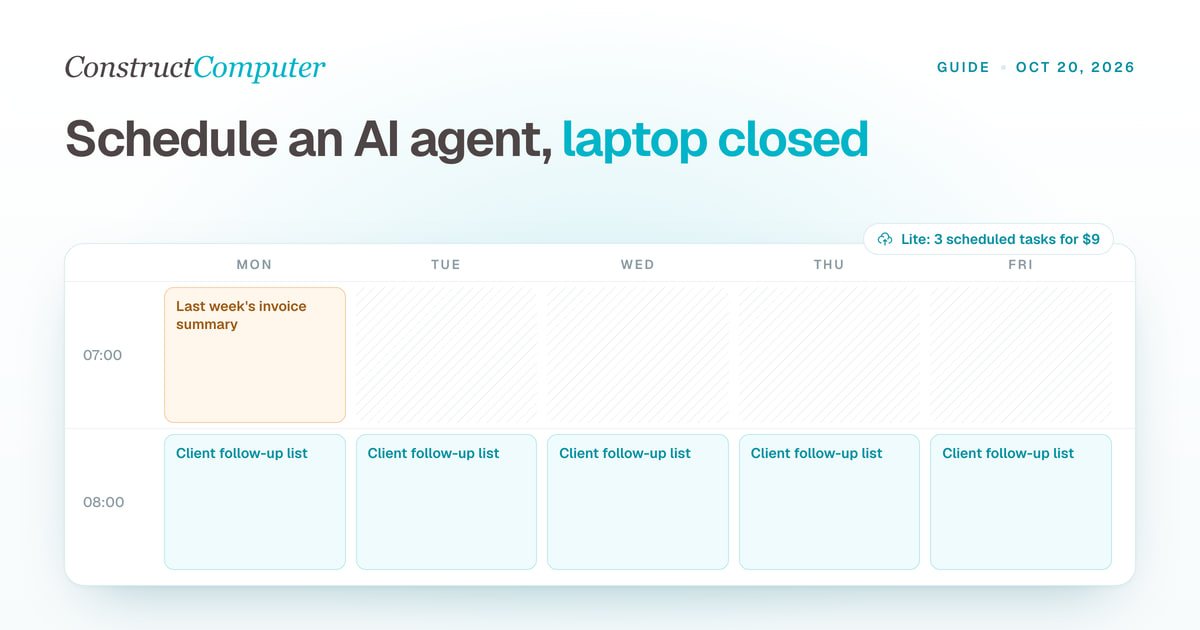
How to Run an AI Agent on a Schedule With Your Laptop Closed
Run AI agent scheduled tasks in the cloud with your laptop shut. Construct includes 3, 10, or 50 by plan, from $9 a month. Steps, prompts, and limits.

AI Workflow Automation
Create reusable linear AI workflows, run them on demand, or schedule recurring work across files, live browser runs, native email, and connected business apps.
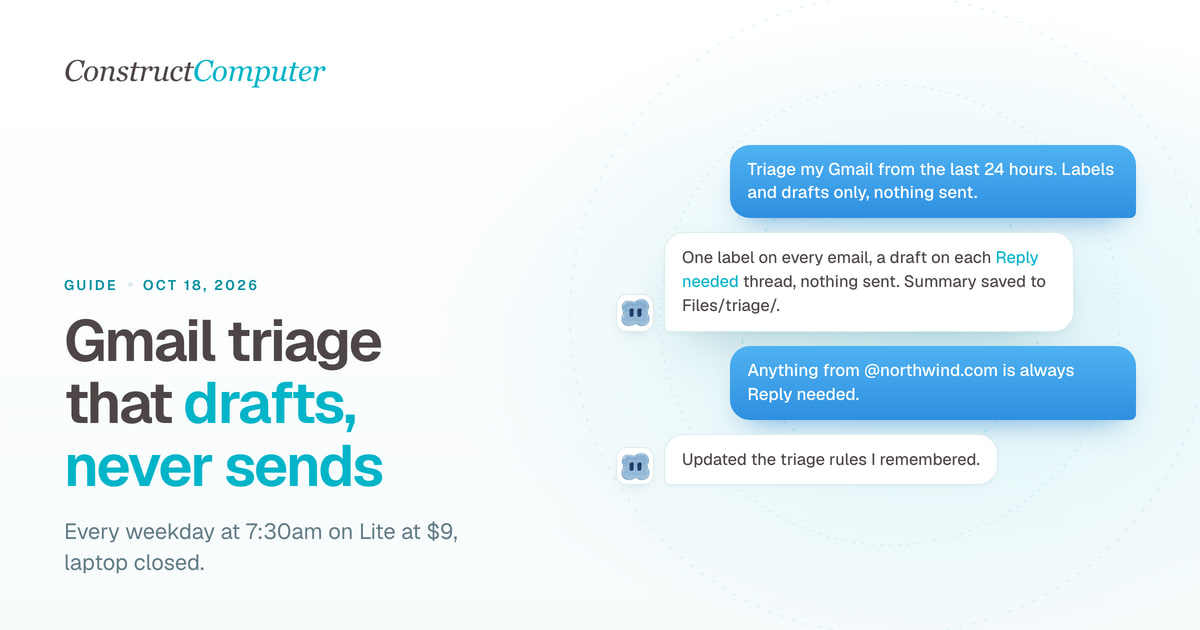
AI Email Triage for Gmail: Drafts, Not Sends
Set up AI email triage that sorts Gmail into Reply needed, FYI, and Later and drafts replies you send yourself. Exact prompts, from $9 a month.
How to Let an AI Agent Use Your Gmail Safely
AI agent Gmail access without the risk: 8 restricted Gmail scopes explained, a separate agent inbox, drafts instead of sends, and a 1-minute revoke.

