How Construct's agent uses a browser and a terminal in one task

Nischal · Author
Writes about Construct, AI agents, and building useful software.
Published · @naik_nischal
On this page10 sections · 9 min read
- When the agent opens a browser at all
- What the live browser is, and what you can do while it runs
- Logins, CAPTCHAs and what the browser cannot do
- The terminal: a Linux sandbox with your files mounted
- Terminal time limits and output
- How the browser and the terminal hand work to each other
- What happens when a step fails halfway
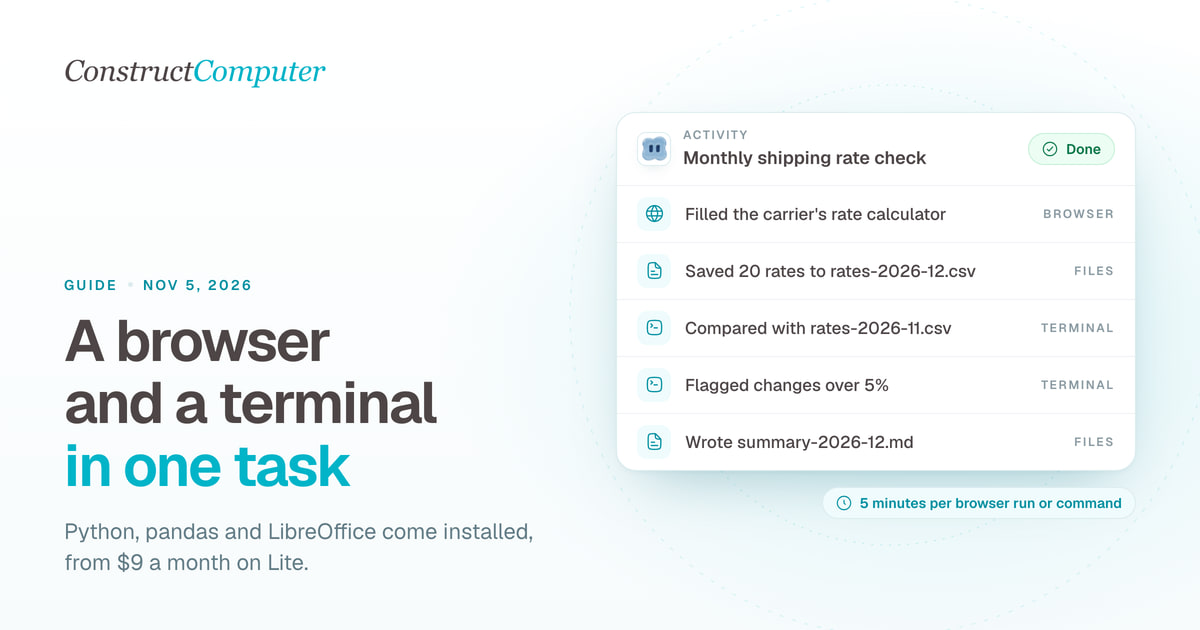
- A job that needs both: a monthly rate check
- How we checked this
- Related resources
An AI agent with a browser and a terminal can get data out of a website that only answers after you click through a form, then analyze it with real code and save the result as a file. In Construct, the agent tries a plain web search or page fetch first and starts a live cloud browser only when that fails or the page needs interaction. The browser run is capped at five minutes, you can watch it, take control of it or stop it, and it hands its findings to a Linux terminal through your workspace Files, where each command runs for up to five minutes.
Vendors often sell this pairing under the name computer use agent. This guide covers how we built it in Construct and the limits you plan around. For the broader idea of an agent that keeps its own machine in the cloud, start with what an AI agent with its own computer is.
When the agent opens a browser at all
A live browser is the slowest and most expensive way to read a web page, so Construct treats it as a fallback. The agent has to evaluate a search or fetch first and, when it calls the browser, state which of five reasons applies: the search failed, the page fetch failed, the site blocked the fetch, the results were not enough, or the page needs interaction such as a form, a dropdown or a login wall.
Most reading never touches the browser. A pricing page, a press release or a documentation page comes back from a plain page fetch. The browser earns its place on a carrier's rate calculator, a public registry search with filters, or a supplier portal that renders its table only after you pick a region.
Construct gives each agent one live browser run at a time. If the agent asks for a second one while the first is still going, the call is refused with a message to stop the first run. Work that needs several sites at once goes to a second agent.
What the live browser is, and what you can do while it runs
The browser is a remote browser session that Construct runs through Composio, the integrations provider listed on our sub-processors page. Construct hands it a goal in plain language and an optional start URL, and a browser agent works toward that goal step by step. Construct checks on the run every 2.5 seconds.
The Browser app on your Construct desktop opens with the run and shows three things:
- The remote screen, live, at the session's own 1920 by 824 proportions.
- A step list with the browser agent's note for each step, the URL it was on and a screenshot taken after the step.
- Two buttons: Take control and Stop.
The view starts read-only. Take control asks you to confirm, then sends your clicks and typing straight to the page while the agent keeps working in it. Give back control returns it. This is how you get past a cookie banner the agent keeps missing, or pick the right option in an ambiguous dropdown.
Stop ends the run. The agent is then told, in so many words, that you stopped it, that it must not start the browser again for this request, and that it should tell you what it finished and ask how to continue. After the run ends, the Browser app keeps the step list, the final screenshot and the result.
Logins, CAPTCHAs and what the browser cannot do
Construct sends the browser a goal and a URL, nothing else. It passes no saved profile, cookies or passwords, so plan for every run to start signed out. If a tool needs your account, connect it from the App Store instead: a structured action against Gmail, HubSpot or Notion is more reliable than clicking through their interfaces, and it does not involve typing a password into a remote browser.
Each run has five minutes. A run that has not finished by then ends as timed out, and Construct does not retry it automatically, because the same goal against the same page would most likely run out of time again. The agent gets back what the run got through before it ended (the last six steps with their URLs) so it can tell you where it stopped.
When the browser agent cannot get past a CAPTCHA or a bot wall, the run ends without success and the agent gets that failure back with the steps it managed. You can also take control and solve the CAPTCHA yourself while the run is live. What the agent reads from the page comes back to it marked as external data whose instructions it should not follow, the same way web pages, email and connected-app results are marked. That lowers the risk of a page steering the agent without removing it; our prompt injection guide covers what else to do.
The terminal: a Linux sandbox with your files mounted
The terminal is a Linux container that starts on the agent's first command and goes back to sleep after 10 minutes without one. Every command runs in bash as an ordinary user called construct. When something needs root, the agent sets a flag on that single command (there is no sudo), and the Terminal app labels it.
Two folders are durable and are the same files you see in Files:
/privateholds your own files, and is mounted only in your one-to-one chats./workspaceholds the team's shared files. In a group chat it is the only one mounted.
Everything else on the container's disk, including /tmp, is gone when the container sleeps.
The image ships with Python 3 and pandas, matplotlib, openpyxl, python-docx, python-pptx, reportlab, pypdf, pdfplumber and markitdown, plus LibreOffice, Tesseract OCR, ocrmypdf, poppler, qpdf, git, curl, jq and ripgrep. The container can reach the internet, so the agent can pip install something else, but that install lives on the container disk and disappears when it sleeps. If a recurring job needs an extra package, put the install command in the job's prompt so each run starts with it.
Terminal time limits and output
Each command gets a two-minute timeout by default, and the agent can raise it to five minutes. Five minutes is the ceiling on every plan today. When a command hits its limit, the agent is told the limit and whether a longer one is possible, and at five minutes it is told to split the work into smaller commands.
Within a chat, the shell keeps its working directory, exported variables and an activated Python virtual environment between commands. Construct stores that state outside the container, so it survives the container going to sleep, though a virtual environment in /tmp does not. Background processes do not survive: Construct clears leftover processes before every command, so a server started with & is gone by the next one. A process limit of 2,048 and 4,096 open files per command keep a runaway script from taking the container down.
The agent reads up to 16,000 characters of output per command. Past that it gets the start and the end, plus the path of a file with all of it. A command that streams more than 200,000 characters is stopped. The Terminal app shows every command and its full output, and keeps those logs until you choose Clear. If a command is stuck, Force stop ends the agent's current turn and kills the processes.
| Thing | How long it lasts |
|---|---|
Files in /private and /workspace | Until you delete them |
| Working directory, exports, virtual env path | For the rest of that chat |
/tmp, packages installed with pip or apt | Until the container sleeps, 10 minutes after the last command |
| Background processes | Until the next command |
| Terminal output logs | Until you clear them |
| Browser logins and cookies | Not kept; each run starts from a goal and a URL |
| Browser step list and result | Shown in the Browser app after the run |
How the browser and the terminal hand work to each other
They never talk directly. The browser returns text to the agent, capped at 12,000 characters per run. The agent writes what it needs from that text into a file, a CSV for a table or Markdown for notes, using its files tool, which writes straight to storage without waking the container. The terminal then reads the same file from /private or /workspace.
When the data is already a downloadable file, the browser is not needed. The agent can import any HTTPS link of up to 25 MB straight into Files (into downloads/ unless you name a folder) and process it in the terminal.
Going through Files costs a step compared with piping data between tools, and it buys a lot: every intermediate result is a file you can open, the next run can read last month's output from the same place, and a teammate can check the numbers without reading the chat.

What happens when a step fails halfway
Construct marks every browser run and terminal command that started and then failed as possibly having done something. A browser run that clicked submit before it timed out may have submitted the form, and a script that died at minute five may have written half a file. Construct retries neither automatically. The agent gets the failure, the progress so far, and has to decide with you what to do next. Only calls that are known to be read-only, like a search, are retried, at most twice.
Files written before the failure stay where they are. That is the practical reason to ask for one file per step in a long job: if step four fails, steps one to three are on disk, and the next attempt starts from them. When the terminal cannot start at all, for example because no container is free, nothing ran, so Construct retries the setup once and otherwise tells the agent to ask you to try again in a few minutes.
A job that needs both: a monthly rate check
Here is the shape of a job that uses both halves. A shop shipping from Leeds to five countries checks a carrier's public rate calculator each month, which only shows prices after a form is filled in. Paste this into a chat with your own carrier's URL:
Open the carrier rate calculator at [URL] in the browser. For France, Germany, Spain, Italy and the Netherlands, enter a 2 kg and a 5 kg parcel from Leeds and read the standard and express prices. Do not submit anything other than the calculator. Save all 20 prices to Files/shipping/rates-2026-11.csv with columns destination, weight_kg, service, price_gbp. Then in the terminal compare it with Files/shipping/rates-2026-10.csv, list every change over 5%, save a chart to Files/shipping/changes-2026-11.png and write a short summary to Files/shipping/summary-2026-11.md.
The prompt sets the browser's boundary ("do not submit anything other than the calculator") because the browser can act on a page without asking you first. It also names every file, so the browser part and the terminal part can be checked separately: open the CSV and compare three prices against the carrier's site before trusting the comparison. Once a few months come out right, put the same prompt on the Calendar for the first weekday of the month.
How we checked this
Every limit and behaviour in this guide was read from Construct's source on October 26, 2026: the browser tool and run loop, the sandbox executor and its timeout clamp, the container image, and the Browser and Terminal apps. The five-minute command ceiling applies to every plan as of that date. We make Construct, so we had the source to read; we did not test other products for this guide.
Related resources
- What is an AI agent with its own computer?
- All our agents get computers, we pay for almost none
- Activity log vs audit log
- How to run an AI agent on a schedule
- AI agent prompt injection: what the 2026 attacks did
- Construct vs coding agents
Frequently asked questions
- Can Construct's browser log in to my accounts?
- Not by itself. Construct sends the browser only a goal and a start URL, with no saved profile, cookies or passwords, so each run starts signed out. For tools you are signed into, connect the app from the App Store and the agent uses a structured action instead.
- How long can a Construct terminal command run?
- Two minutes by default and up to five minutes, on every plan as of October 26, 2026. A longer job has to be split into smaller commands that save a file after each step.
- Can I run two browser tasks at once in Construct?
- Not with one agent. Each agent has one live browser run at a time, and a second request is refused until the first is stopped. Give the second site to another agent.
- Do packages the agent installs stay installed?
- Only until the container sleeps, 10 minutes after the last command. Files in /private and /workspace persist; anything else on the container disk, including /tmp and pip installs, does not.
Keep reading

Your agent has a half-life
Why AI agents keep failing on long multi-step jobs: a 95% reliable agent finishes 48 steps 8.5% of the time. The fix is a resumable run, not a better model.
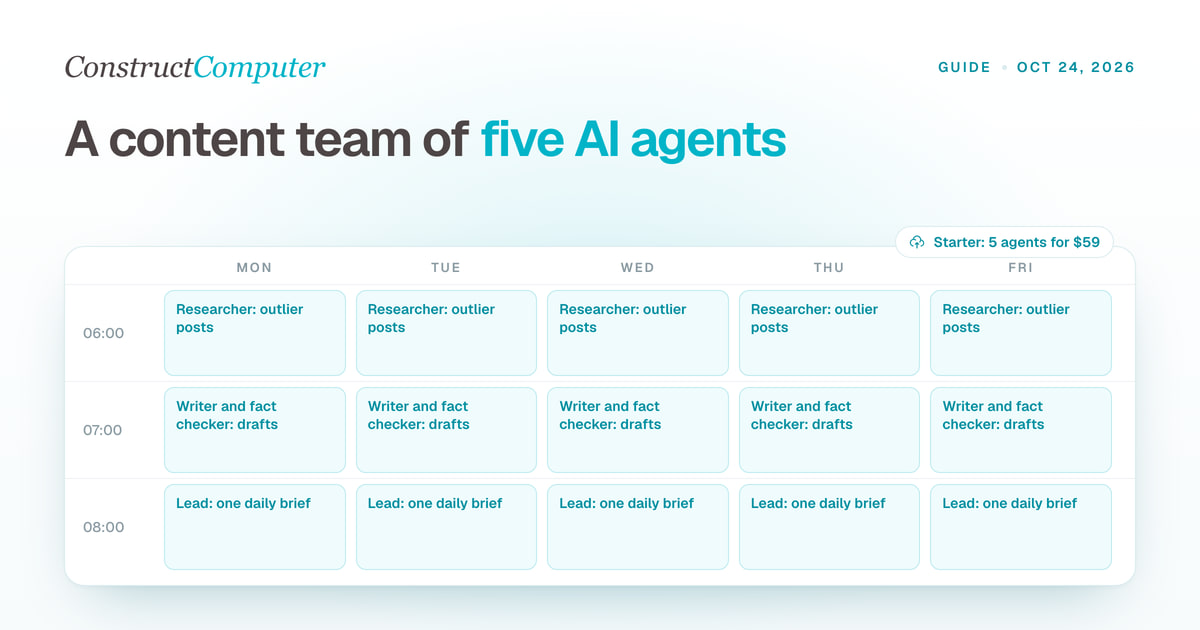
AI agents for content creation: build a content team in Construct
Set up a team of AI agents for content creation: a lead, a researcher, a writer, a fact checker and an analyst, with role prompts, schedules and a daily brief.
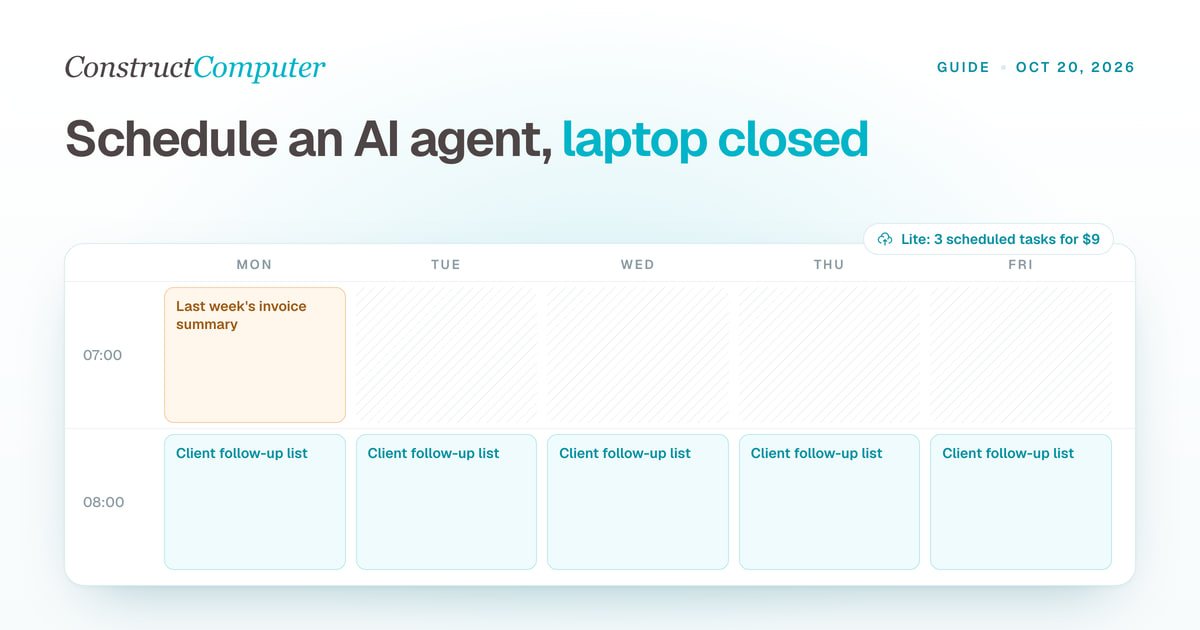
How to Run an AI Agent on a Schedule With Your Laptop Closed
Run AI agent scheduled tasks in the cloud with your laptop shut. Construct includes 3, 10, or 50 by plan, from $9 a month. Steps, prompts, and limits.

AI Workflow Automation
Create reusable linear AI workflows, run them on demand, or schedule recurring work across files, live browser runs, native email, and connected business apps.


